Login Object Sit lets your bot baby automatically sit on an object, like a crib, swing, or toy, the moment it logs into Second Life. Instead of your bot just standing around after logging in, it will sit right down on whatever you choose, every single time.
Most MoonBots users set this to a crib or a favorite toy, so their bot baby starts off looking cute and in character right away. It saves you from having to manually sit your bot down every time it logs in or restarts.
A UUID is a unique ID code that Second Life uses to identify a specific object, like a crib or toy, in the world. You will need this code before you can set up Login Object Sit.
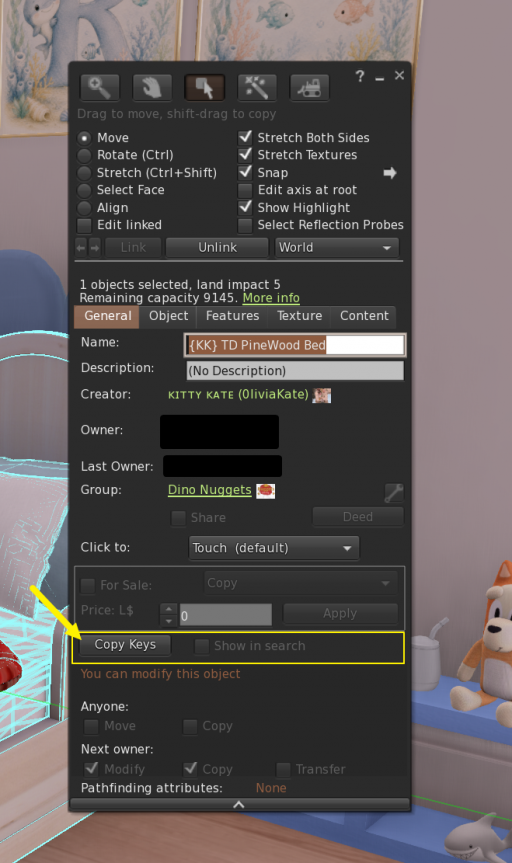
Tip: If you do not see a copy icon, make sure your Advanced menu is enabled in Firestorm. You can turn it on under the top menu, then Advanced.
Once you have your object's UUID copied, head over to your bot's MoonBots control panel.
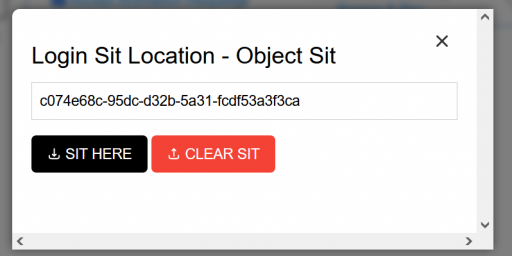
Restart your bot or have it log in again to see the change take effect. Your bot should now sit on the object automatically as soon as it logs in.
If you ever want your bot to stop automatically sitting on login, you can remove this setting at any time.
Your bot will go back to simply standing after it logs in.
Tip: UUIDs change if an object is taken back into inventory and rezzed again, so try to leave your crib or toy rezzed in place once you have set this up. If you ever do need to move or re-rez it, just repeat Step 1 to grab the new UUID.
A few cookies keep you logged in and block bots, so those always run. Everything else stays off until you allow it: loading PayPal checkout, and any analytics we might add later. See our Cookie Policy.
Turn each purpose on or off. Nothing outside "strictly necessary" runs until you allow it, and you can change this whenever you like from the Cookie Settings link in the footer.
Keeps you logged in, protects the site from bots and abuse, and remembers settings you have deliberately changed, such as dark mode. Without these the site does not work.
PHPSESSID (login session, ends when you close the browser), cf_clearance (Cloudflare bot protection, 12 months), mb_consent (stores this choice, 6 months), theme and wm_dismissed (written only when you switch the theme or dismiss a notice, so they record a choice you made)
Loads PayPal so you can add funds to your wallet. PayPal stores data on your device to process the payment and detect fraud. If this is off, the PayPal checkout will not load until you allow it.
__paypal_storage__ and related PayPal storage, set by paypal.com
Measures which pages get used so we can improve them. Off by default and not in use today. The toggle is here so nothing can start without asking you first.
None in use today
Builds a profile of your interests to show you ads elsewhere. Off by default and not in use today.
None in use today
 MoonBots
 [Starries]