The Local Chat Greeter is what says hi to people when they walk up to your bot. You can have it drop a message in local chat, send an IM, hand out an item, or invite them to a group, all automatically.
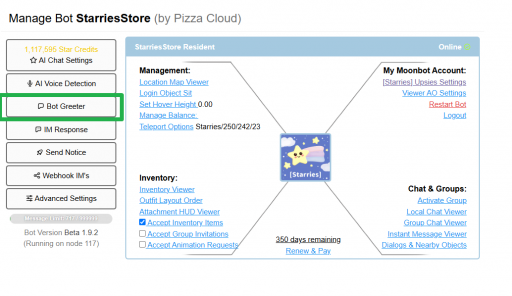
Bot Greeter is on the main bot management page
You'll find it on your bot's management page under "Bot Greeter." Click that and you'll get a popup with three tabs: Message, Advanced, and Avatar Logs. We'll go through each one.
This is where you turn the greeter on or off and set what it actually says.
At the top of the popup there's a dropdown that says either "Local Chat Enabled" or "Local Chat Disabled." That's your on/off switch for the whole feature.
This is the message that shows up in local chat when someone gets close to your bot. It's optional, if you leave it blank the bot just won't say anything in local chat when people walk by.
You can use these variables in your message and the bot will swap them out automatically: %FIRST_NAME%, %SL_NAME%, %USER_UUID%, and %LAST_NAME%.
Tip
You can drop a clickable group join link right in the message using the secondlife:///app/group/ format, like the example shown in the box on the popup. Handy if you want people to be able to join your group straight from the greet.
This one sends a private IM instead of posting in local chat. Also optional, and it uses the same variables as the local greet message. A lot of people use this for a more personal welcome, since IMs don't get lost in local chat spam.
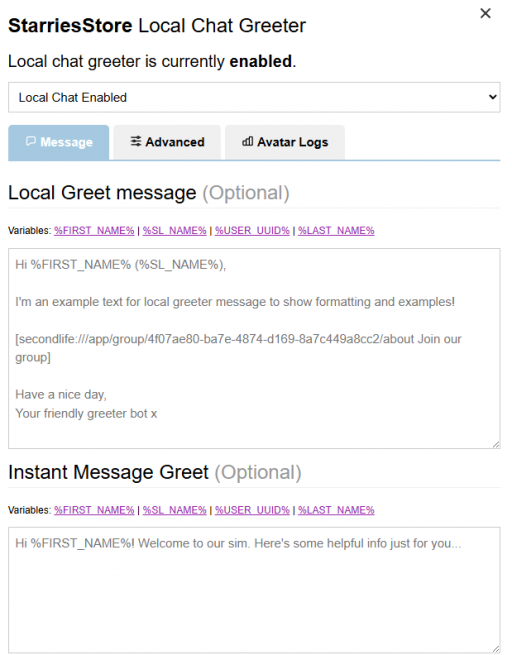
Message tab, local greet and IM greet fields
This tab controls how and where the greeter triggers, plus a few extras like giving out items or inviting people to your group.
This slider sets how close someone has to walk before the bot notices them and greets them. Default is 20m, max is 96m. If your bot is somewhere busy you probably want to keep this smaller so it's not greeting everyone across the sim.
By default the greeter works everywhere the bot goes. If you only want it greeting on specific sims, type the sim name in the box and hit Enter to add it. Leave it empty and it'll greet on any sim.
If your bot has AI chat turned on, this lets the greeting also kick off a message to the AI, so the bot can respond conversationally instead of (or in addition to) the static greet message. Disabled by default.
Want to hand visitors a freebie or a notecard when they get greeted? Click "Select Item or Folder from Inventory" and pick what you want given out. Just keep in mind the item needs Copy and Transfer permissions or the bot won't be able to give it.
This lets the bot automatically invite visitors to a group when it greets them. It's disabled by default, and it only works for groups where the bot actually has invite permissions.
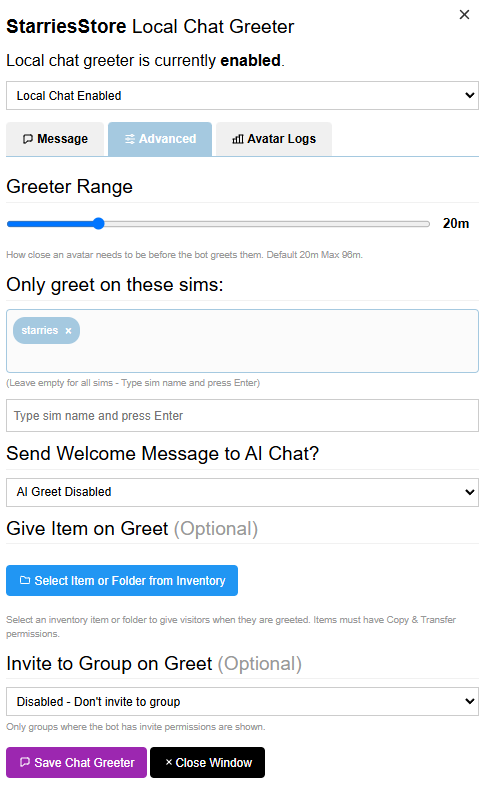
Advanced tab settings
Once you've got everything set the way you want, click "Save Chat Greeter" at the bottom to save your changes.
Premium Feature
Avatar Logs is only available on Premium bots. If you're on a different tier, this tab won't have data to show you, so consider upgrading if visitor tracking is something you want.
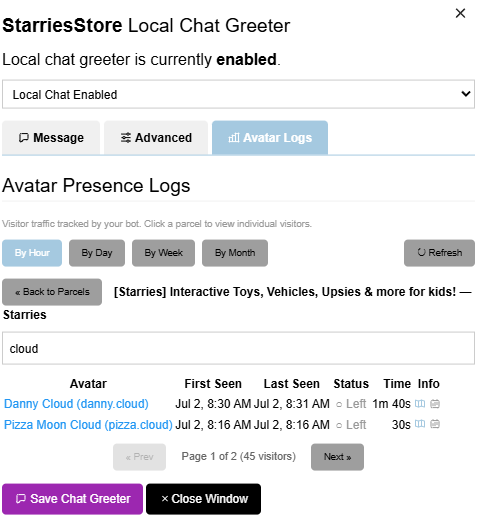
For Premium bots, this tab tracks who's actually walking by and getting greeted, so you can see how much traffic your bot (and your spot in-world) is really getting.
Click on a parcel in the list to see the individual visitors who showed up there.
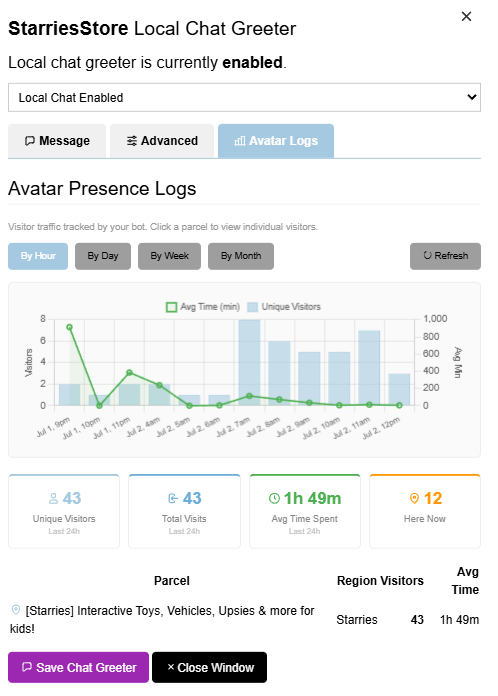
Avatar Logs tab (Premium bots only)
A few cookies keep you logged in and block bots, so those always run. Everything else stays off until you allow it: loading PayPal checkout, and any analytics we might add later. See our Cookie Policy.
Turn each purpose on or off. Nothing outside "strictly necessary" runs until you allow it, and you can change this whenever you like from the Cookie Settings link in the footer.
Keeps you logged in, protects the site from bots and abuse, and remembers settings you have deliberately changed, such as dark mode. Without these the site does not work.
PHPSESSID (login session, ends when you close the browser), cf_clearance (Cloudflare bot protection, 12 months), mb_consent (stores this choice, 6 months), theme and wm_dismissed (written only when you switch the theme or dismiss a notice, so they record a choice you made)
Loads PayPal so you can add funds to your wallet. PayPal stores data on your device to process the payment and detect fraud. If this is off, the PayPal checkout will not load until you allow it.
__paypal_storage__ and related PayPal storage, set by paypal.com
Measures which pages get used so we can improve them. Off by default and not in use today. The toggle is here so nothing can start without asking you first.
None in use today
Builds a profile of your interests to show you ads elsewhere. Off by default and not in use today.
None in use today
 MoonBots
 [Starries]