Your bot needs to know where to log in, and where to go if its home region ever restarts. The Teleport Options panel on your MoonBots dashboard lets you control both of these settings in one place.
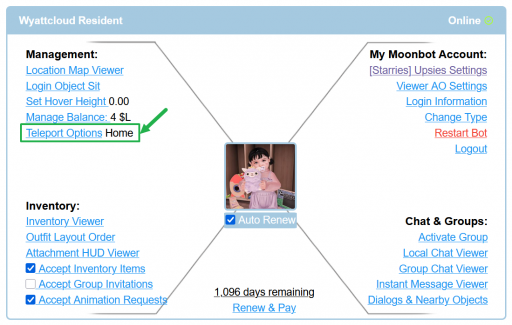
You can find Teleport Options in the Management section of your bot's dashboard page.
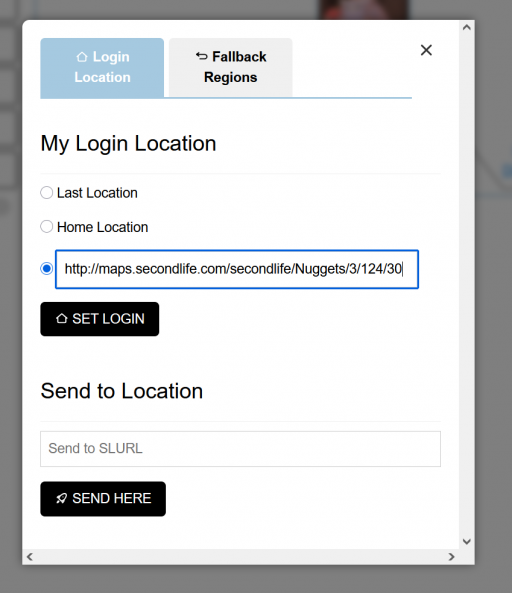
The Login Location tab controls where your bot appears when it logs in. You have three options to choose from:
Tip
If you plan on moving your bot to a new home often, a custom SLURL is the most reliable option since it will not change if your bot's last location or home changes unexpectedly.
Underneath your login location settings, you will find the Send to Location section. This lets you teleport your bot to a specific place immediately, without changing its saved login location.
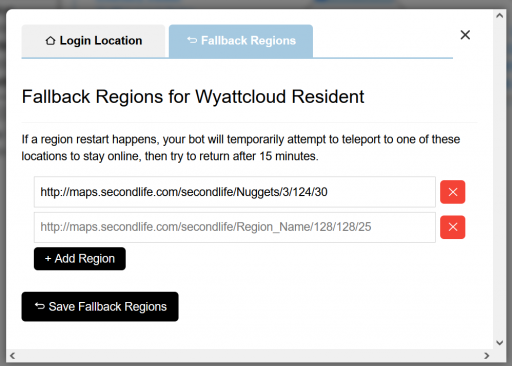
Fallback regions act as a safety net for your bot. If the region your bot is in restarts, your bot will temporarily teleport to one of your saved fallback regions to stay online. After 15 minutes, it will try to return to its original location on its own.
Tip
Add more than one fallback region if you can. If your first fallback region happens to be restarting too, your bot can try the next one on your list.
Remove a Fallback Region
Click the red X next to any saved region to remove it from your list, then click Save Fallback Regions to confirm the change.
A few cookies keep you logged in and block bots, so those always run. Everything else stays off until you allow it: loading PayPal checkout, and any analytics we might add later. See our Cookie Policy.
Turn each purpose on or off. Nothing outside "strictly necessary" runs until you allow it, and you can change this whenever you like from the Cookie Settings link in the footer.
Keeps you logged in, protects the site from bots and abuse, and remembers settings you have deliberately changed, such as dark mode. Without these the site does not work.
PHPSESSID (login session, ends when you close the browser), cf_clearance (Cloudflare bot protection, 12 months), mb_consent (stores this choice, 6 months), theme and wm_dismissed (written only when you switch the theme or dismiss a notice, so they record a choice you made)
Loads PayPal so you can add funds to your wallet. PayPal stores data on your device to process the payment and detect fraud. If this is off, the PayPal checkout will not load until you allow it.
__paypal_storage__ and related PayPal storage, set by paypal.com
Measures which pages get used so we can improve them. Off by default and not in use today. The toggle is here so nothing can start without asking you first.
None in use today
Builds a profile of your interests to show you ads elsewhere. Off by default and not in use today.
None in use today
 MoonBots
 [Starries]