Bot Routines let your bot automate its day. Set up routines so your bot logs in and gets dressed in the morning, plays throughout the day, and goes to bed at night, all on its own. Routines can run on a schedule, respond to things people say, or both.
Opening Bot Routines
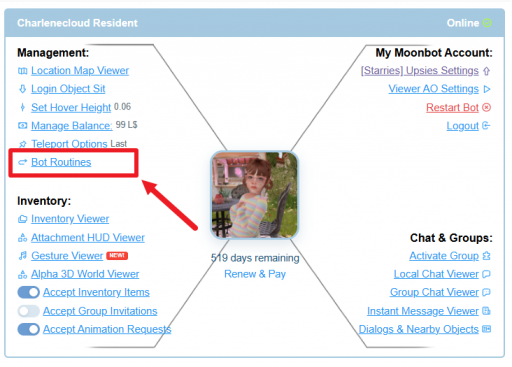
This opens the Bot Routines window, with four tabs: My Routines, Routine Library, Routine Calendar, and Activity Log.

My Routines
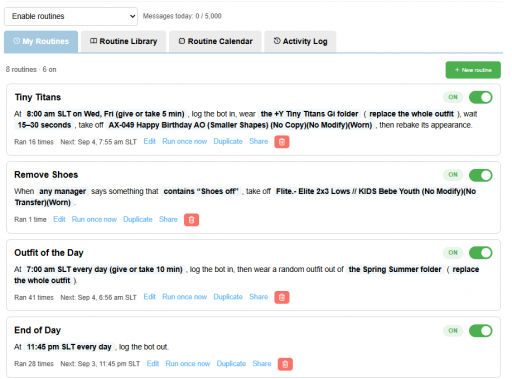
My Routines lists every routine set up for this bot. Each routine shows its name, a plain-language summary of what it does, how many times it has run, and when it will next run.
Use the Enable routines / Disable routines menu at the top to turn all routines on or off for this bot at once.
Creating a New Routine
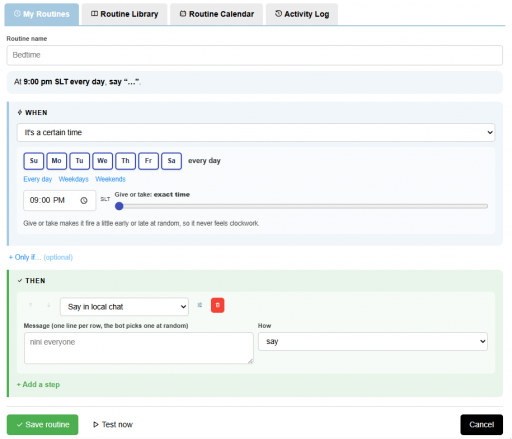
Tip: Keep the Give or take slider on for anything that runs daily, like wake-up or bedtime routines, so your bot doesn't feel like it's on a timer.
Routine Library
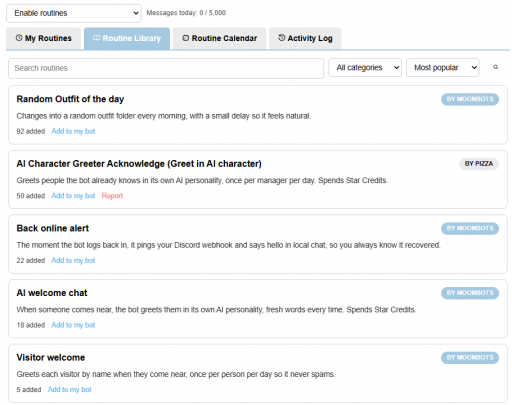
The Routine Library has ready-made routines you can add to your bot without building them from scratch. Search by name, filter by category, and sort by Most popular or other options.
Routine Calendar
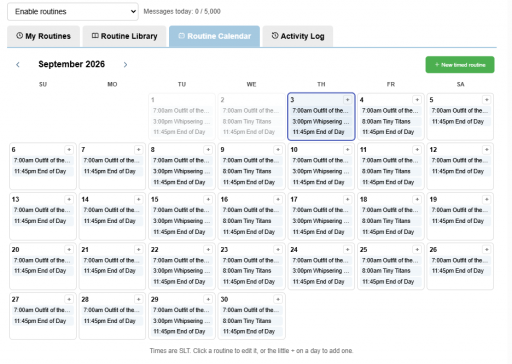
The Routine Calendar shows a month view of every time-based routine, laid out on the day and time it will run. Use the arrows to move between months.
All times shown are SLT.
Activity Log
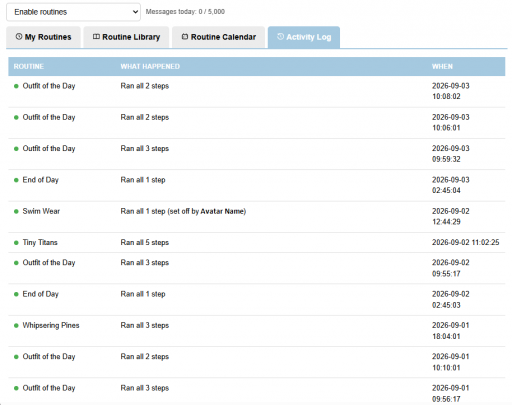
The Activity Log shows a history of every routine run for this bot: which routine ran, what happened, and when.
Tip: Routines that use the AI (like AI-personality greetings) use Star Credits each time they run. Routines that just say a set message, change outfits, move, or wait do not use Star Credits.
A few cookies keep you logged in and block bots, so those always run. Everything else stays off until you allow it: loading PayPal checkout, and any analytics we might add later. See our Cookie Policy.
Turn each purpose on or off. Nothing outside "strictly necessary" runs until you allow it, and you can change this whenever you like from the Cookie Settings link in the footer.
Keeps you logged in, protects the site from bots and abuse, and remembers settings you have deliberately changed, such as dark mode. Without these the site does not work.
PHPSESSID (login session, ends when you close the browser), cf_clearance (Cloudflare bot protection, 12 months), mb_consent (stores this choice, 6 months), theme and wm_dismissed (written only when you switch the theme or dismiss a notice, so they record a choice you made)
Loads PayPal so you can add funds to your wallet. PayPal stores data on your device to process the payment and detect fraud. If this is off, the PayPal checkout will not load until you allow it.
__paypal_storage__ and related PayPal storage, set by paypal.com
Measures which pages get used so we can improve them. Off by default and not in use today. The toggle is here so nothing can start without asking you first.
None in use today
Builds a profile of your interests to show you ads elsewhere. Off by default and not in use today.
None in use today
 MoonBots
 [Starries]