The MoonBots HUD lets you control your bot directly from Second Life without needing to open the website for every action.
You can use the HUD to move your bot, sit or stand your bot, open bot settings, interact with Upsies, manage advanced options, control messages, and quickly log your bot in or out.
The HUD has three main sections:
Some buttons appear at the top of every HUD section, so they are always easy to reach.
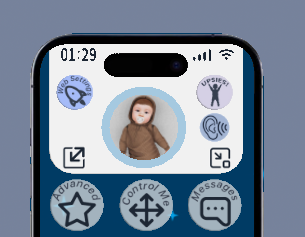
These buttons appear on the main HUD screen and are available across the HUD sections.
The Bot’s Web Settings button opens the bot’s settings on the MoonBots website.
Use this when you need to change settings that are managed from the web dashboard.
The Upsie’s Settings button opens the bot’s Upsie’s menu.
Use this to quickly open your bot’s Upsies menu; The bot must be wearing their Upsies! And be near you in-world for this function to work.
The Resize HUD button changes the size of the HUD on your screen.
Use this if the HUD feels too large, too small, or is blocking part of your viewer.
The AI Chat Whisper button controls let’s you whisper to your bot.
Whisper a thought or tell your bot something! This is helpful to relay information to your bot that they might have missed in local chat or add roleplay information.
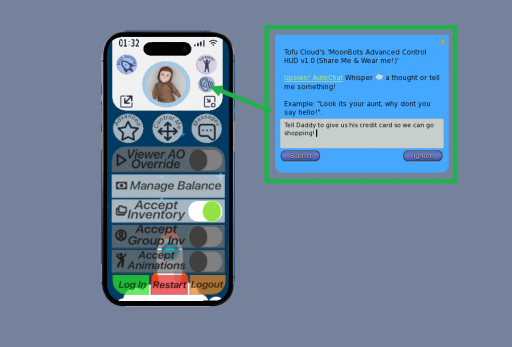
The Minimize HUD button minimizes the HUD, so it takes up less space on your screen.
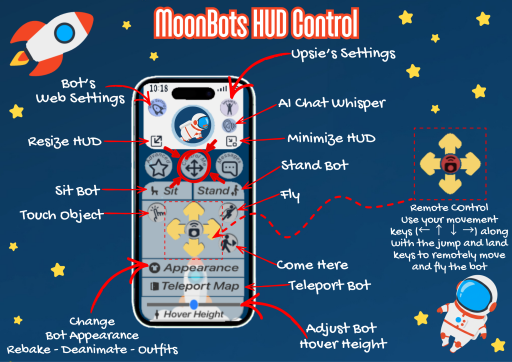
The Control Me section is used for direct bot control.
Use this section when you want to move your bot, make your bot sit or stand, teleport your bot, adjust hover height, or change your bot’s appearance.
The Sit button makes the bot sit.
Use this when you want your bot to sit on an object, furniture, or pose
The Stand button makes the bot stand up.
Use this if your bot is sitting and you want them to get up.
The Touch Object button lets the bot touch or interact with an object.
Use this when an object needs to be clicked by the bot instead of by your avatar.
The remote control arrows let you move your bot from the HUD.
You can use your movement keys, such as the arrow keys, along with the jump and land keys to remotely move or fly the bot.
This is useful when you need to guide your bot into position.
The Fly button allows the bot to fly.
The Come Here button has the bot move to you.
Use this when your bot is nearby, and you want them to walk to you.
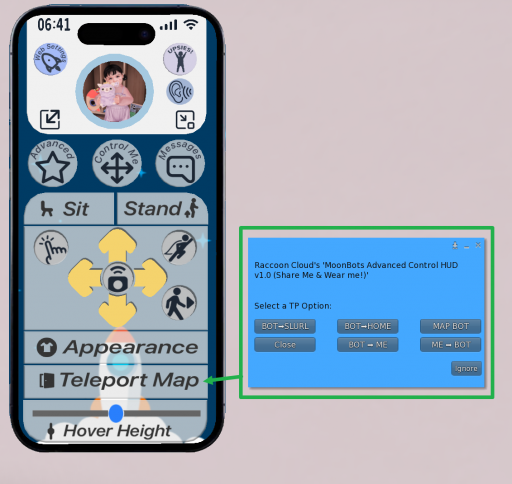
The Teleport Map button opens teleport options for the bot.
Use this when you need to teleport your bot to another location.
BOT->SLURL will tp your bot to the slurl you paste in the pop up menu
BOT->HOME will tp your bot to their set home location
BOT->ME will tp your bot to your current location
MAP BOT will send you a pop up with your bot’s current location
ME->BOT will tp you to your bots current location
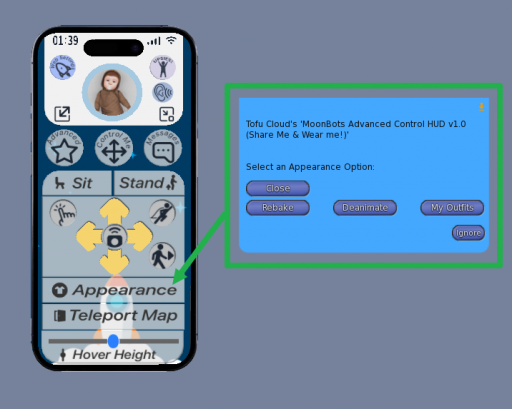
The Appearance button opens appearance options for the bot.
These options include:
Use this section when your bot needs an outfit change, to stop an animation, or rebake their appearance.
The Hover Height slider adjusts the bot’s hover height.
Use this if your bot appears too high, too low, floating, or sinking into the ground.
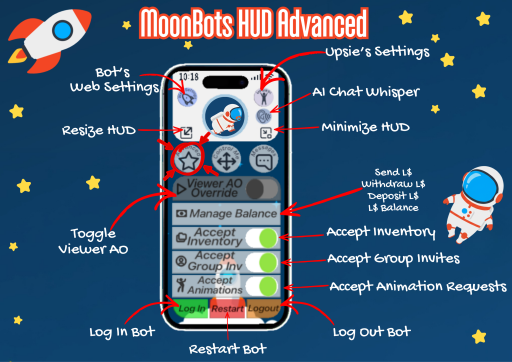
The Advanced section includes stronger bot management tools.
Use this section carefully, especially when managing money, inventory permissions, login status, or restart options.
The Viewer AO Override toggle turns the bot’s viewer AO on or off.
This only works for bots that have a viewer AO set up.
The Manage Balance button lets you manage the bot’s Linden dollar balance.
Depending on your permissions, this may allow you to:
Use this feature carefully because it affects the bot’s Second Life account balance.
The Accept Inventory toggle allows the bot to accept inventory offers.
Use this when the bot needs to receive items such as objects, clothing, folders, notecards, landmarks, or other inventory.
The Accept Group Invites toggle allows the bot to accept group invitations.
Use this when the bot needs to join a group for land access, roleplay setup, store use, or other group-based permissions.
Make sure the bot has an available group space before accepting a new group invite. Caution: If your bot is added to a group that costs lindens to join, this will take the bot’s lindens. Only enable as needed.
The Accept Animations toggle allows the bot to accept animation requests.
This may be needed for furniture, roleplay objects, Upsie’s features, or other scripted items that animate the bot.
The Log In button logs the bot into Second Life.
Use this if the bot is offline and you want to bring it online.
It will take a few minutes for the bot to log in and fully load their appearance and Upsies settings.
The Restart button restarts the bot.
Use this if the bot is online but not responding correctly, acting stuck, or not updating after changes.
It can take up to 3 minutes to fully restart the bot process.
The Logout button logs the bot out of Second Life.
Use this when you want to take the bot offline.
The bot will stay offline until it is logged back in.
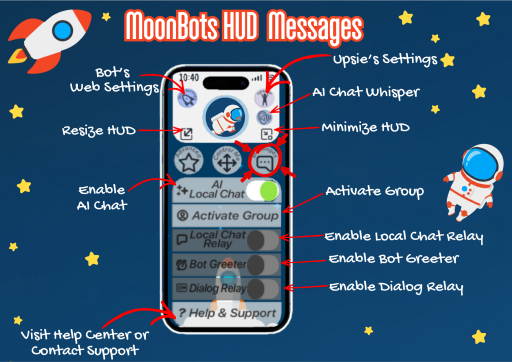
The Messages section controls chat, group, greeting, relay, and support features.
Use this section when you want to manage how your bot communicates.
The AI Local Chat toggle turns AI chat on or off for local chat.
When enabled, the bot will respond using AI Chat and spend AI Star Credits.
When disabled, the bot will not use AI Chat or spend AI Star Credits.
The Activate Group button lets you activate a group for the bot.
Use this when the bot needs a specific active group for land access, objects, roleplay areas, or store-related features.
The Local Chat Relay toggle controls whether local chat relay is enabled.
When enabled, you will see all the local chat that your bot sees.
The Bot Greeter toggle controls the bot’s greeter feature.
Use this if your bot is set up to greet people, welcome roleplay visitors, or store customers.
The Dialog Relay toggle shows the pop-up menus your bot receives in-world.
This is very useful for roleplay because you can interact with menus from furniture, vendors, poses, scripted objects, and roleplay tools directly through MoonBots.
Use this when you need to change poses, adjust your bot on furniture, respond to object menus, or choose options that are sent to the bot.
The Help & Support button takes you to support options.
Use this if you need help, want to visit the Help Center, or need to contact MoonBots support team.
Some HUD buttons may only work if:
The Viewer AO toggle only works if your bot has a viewer AO set up.
If no viewer AO has been configured, the button may not perform any action.
Use Restart if the bot is online but not behaving correctly.
Use Log Out if you want the bot to go offline fully.
Use the Hover Height slider in the Control Me section.
Adjust the slider until the bot appears at the correct height.
Check that:
Check the bot’s Second Life username and password in the bot’s web settings.
If the password is incorrect, the bot will not be able to log in.
Make sure the correct toggle is enabled in the Advanced section.
Check that the bot is online and able to receive the request in Second Life.
A few cookies keep you logged in and block bots, so those always run. Everything else stays off until you allow it: loading PayPal checkout, and any analytics we might add later. See our Cookie Policy.
Turn each purpose on or off. Nothing outside "strictly necessary" runs until you allow it, and you can change this whenever you like from the Cookie Settings link in the footer.
Keeps you logged in, protects the site from bots and abuse, and remembers settings you have deliberately changed, such as dark mode. Without these the site does not work.
PHPSESSID (login session, ends when you close the browser), cf_clearance (Cloudflare bot protection, 12 months), mb_consent (stores this choice, 6 months), theme and wm_dismissed (written only when you switch the theme or dismiss a notice, so they record a choice you made)
Loads PayPal so you can add funds to your wallet. PayPal stores data on your device to process the payment and detect fraud. If this is off, the PayPal checkout will not load until you allow it.
__paypal_storage__ and related PayPal storage, set by paypal.com
Measures which pages get used so we can improve them. Off by default and not in use today. The toggle is here so nothing can start without asking you first.
None in use today
Builds a profile of your interests to show you ads elsewhere. Off by default and not in use today.
None in use today
 MoonBots
 [Starries]