Use Dialog Relay to click and respond to your baby's menus, all from your MoonBots HUD. This works for baby furniture, toys, food, and more.
Dialog Relay lets you interact with objects in your baby's world without clicking on them directly in your viewer. When it is turned on, MoonBots relays object menus straight to your HUD, so you can tap through them from your phone or your viewer just as easily.
There are three ways to use it:
Open your MoonBots HUD.
Tap Messages.
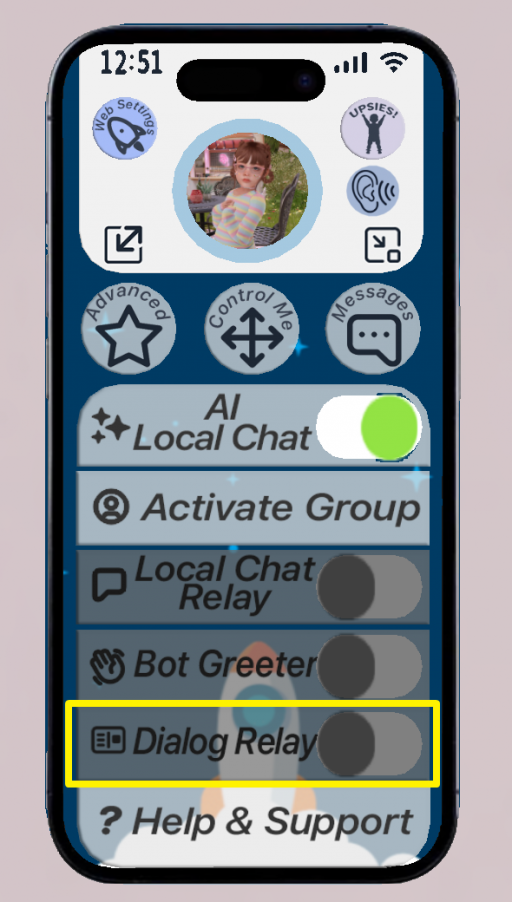
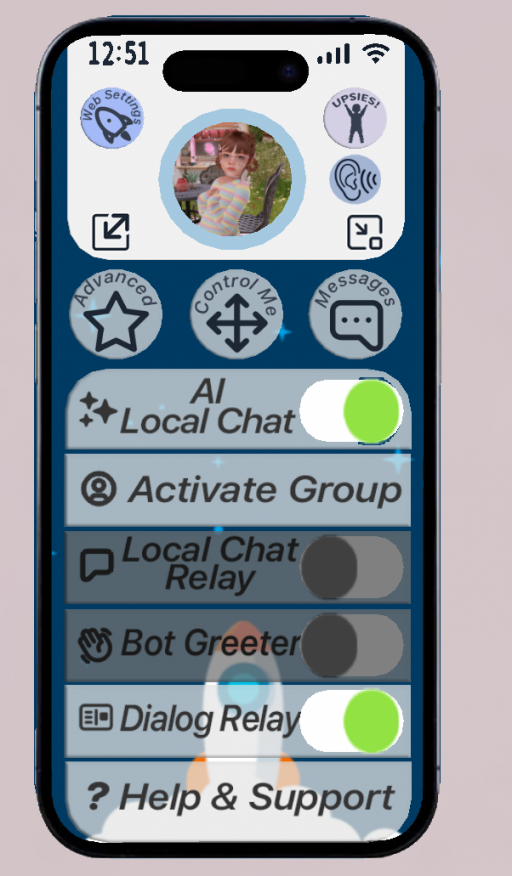
Find Dialog Relay in the list and tap its toggle to turn it on. It glows green when active.
💡 Important
Dialog Relay needs to be turned on for object menus to reach your HUD. If you touch something and no menu shows up, check that this toggle is green.
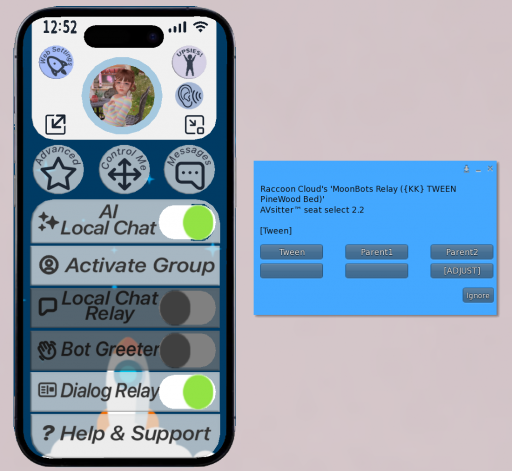
Once Dialog Relay is on, sitting your bot on a piece of furniture or activating a toy that has its own menu will bring that menu straight to your HUD as a pop up. You can tap the buttons on it just like you would if you had clicked the object yourself in world.
If you want to interact with something nearby that your bot is not sitting on, you can have MoonBots touch it for you.
Open Control Me on your HUD.
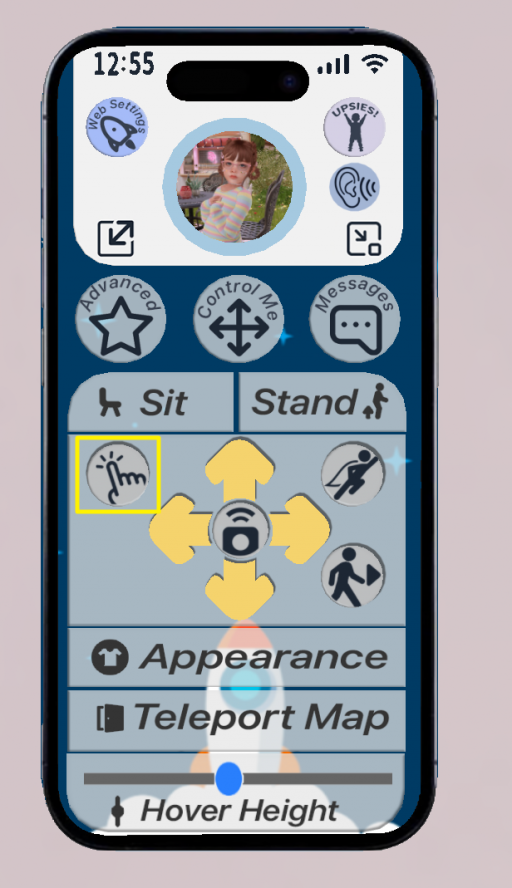
Tap the hand icon in the lower left of the movement pad. This is the touch button.
MoonBots lists nearby touchable objects, each with a number.
Tap the number next to the object you want to touch. If the object has its own menu, it will pop up next.
If there are more objects than fit on one screen, tap NEXT to see more.
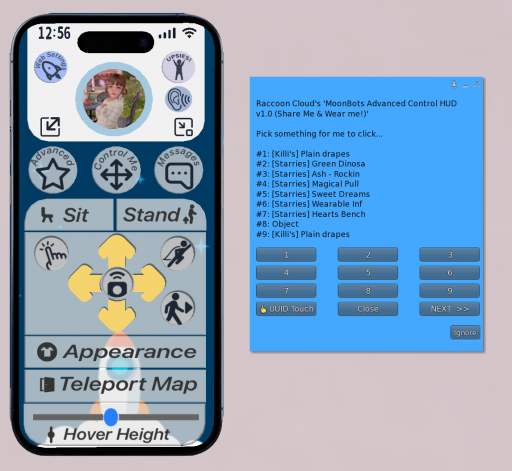
UUID Touch lets you touch an object by pasting in its key instead of picking it from a list. This is handy when the object you want is not showing up nearby, or when you already know its key.
Open Control Me on your HUD.
Tap UUID Touch.
Paste or type in the object's UUID.
Tap Submit.
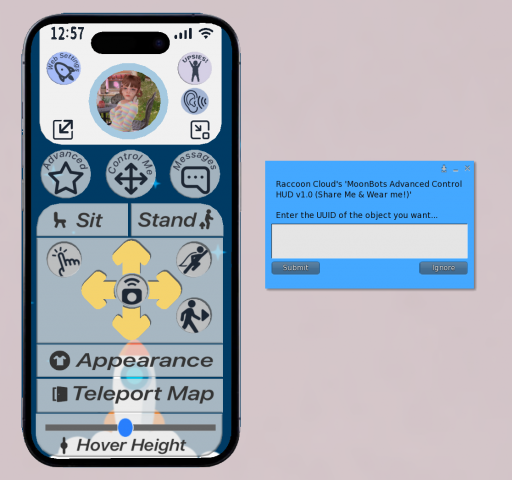
To find an object's UUID in Second Life, right click the object, choose More, then Copy Key. This copies the UUID to your clipboard so you can paste it straight into the field.
💡 Tip
Dialog Relay works great for baby routines like feeding, diaper changes, and playtime. Turn it on before a play session so every menu comes straight to your HUD instead of needing you to click on each item in world.
A few cookies keep you logged in and block bots, so those always run. Everything else stays off until you allow it: loading PayPal checkout, and any analytics we might add later. See our Cookie Policy.
Turn each purpose on or off. Nothing outside "strictly necessary" runs until you allow it, and you can change this whenever you like from the Cookie Settings link in the footer.
Keeps you logged in, protects the site from bots and abuse, and remembers settings you have deliberately changed, such as dark mode. Without these the site does not work.
PHPSESSID (login session, ends when you close the browser), cf_clearance (Cloudflare bot protection, 12 months), mb_consent (stores this choice, 6 months), theme and wm_dismissed (written only when you switch the theme or dismiss a notice, so they record a choice you made)
Loads PayPal so you can add funds to your wallet. PayPal stores data on your device to process the payment and detect fraud. If this is off, the PayPal checkout will not load until you allow it.
__paypal_storage__ and related PayPal storage, set by paypal.com
Measures which pages get used so we can improve them. Off by default and not in use today. The toggle is here so nothing can start without asking you first.
None in use today
Builds a profile of your interests to show you ads elsewhere. Off by default and not in use today.
None in use today
 MoonBots
 [Starries]