The MoonBots Advanced Control HUD makes it easy to change what your baby bot is wearing without digging through your inventory. This guide walks you through opening the Appearance menu and choosing where the outfit comes from.
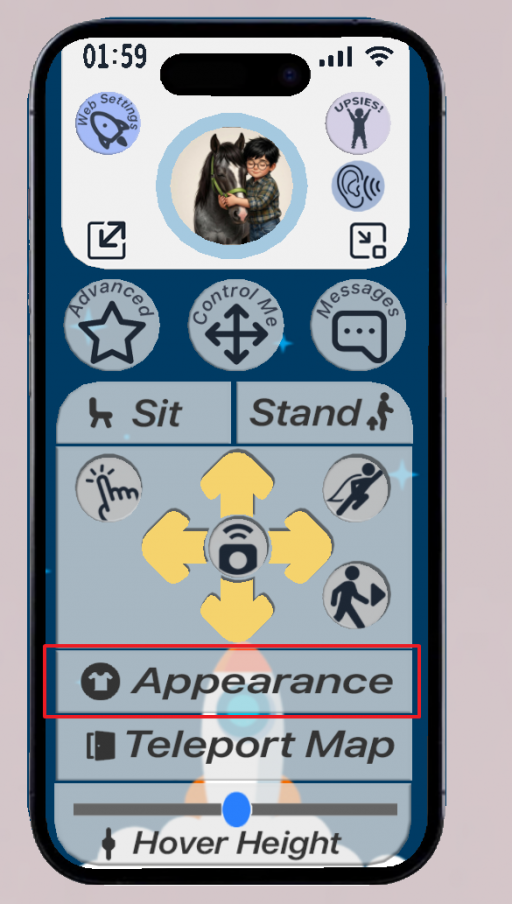
The Appearance button on the HUD
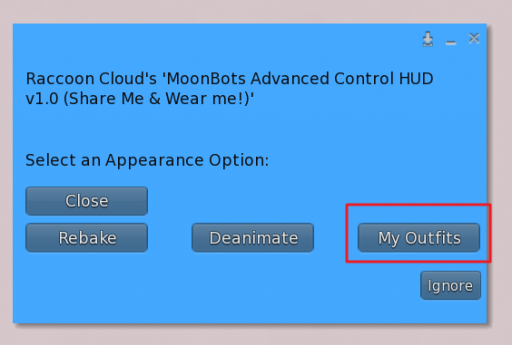
The Appearance popup with the My Outfits option
After tapping My Outfits, you will be asked to pick between two folders: Outfits Folder and RLV Folder. These pull outfits from two different places, so it helps to know the difference before you choose.
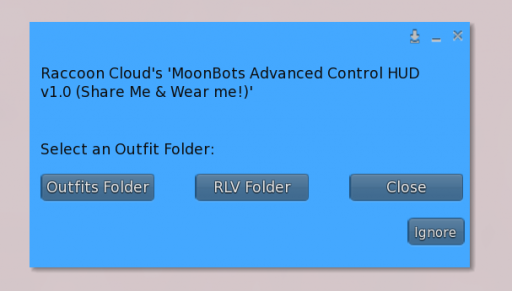
Choosing between the Outfits Folder and the RLV Folder
This contains the regular outfits you have put together yourself in the Second Life viewer, the same way you would dress any avatar. Use this option for everyday outfits, event outfits, or anything you have built using standard viewer wearables.
This contains outfits specifically designed to work with Upsies! using RLV (Restrained Love Viewer) attachments. These outfits are built so Upsies! features can interact with what your bot is wearing. Use this option when you want an outfit designed to work with Upsies!
Important
If you need to set up RLV outfits, visit: https://starries.co/outfits
RLVa must stay enabled in your viewer for RLV Folder outfits and other Upsies! features to work correctly. Do not disable RLVa.
Whichever source you choose, you will see a numbered list of folders. Tap the number that matches the folder you want, or use UP FOLDER and NEXT to browse.
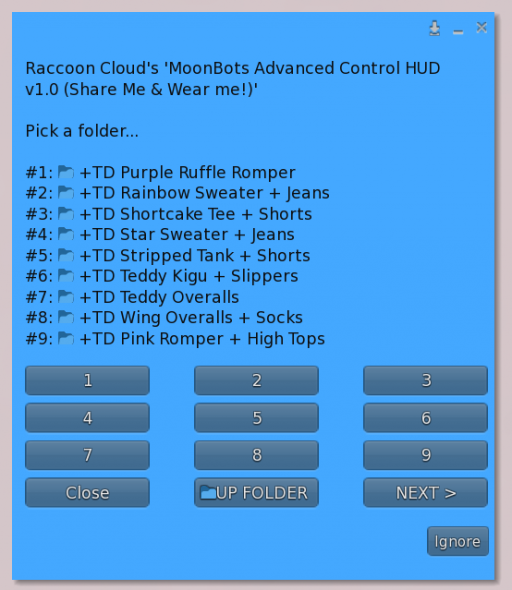
Numbered list of outfits inside the Outfits Folder
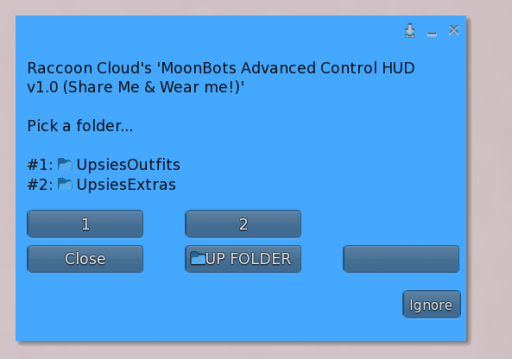
The RLV Folder showing UpsiesOutfits and UpsiesExtras
Once you select a folder, your bot's outfit will update to match. If you need to make further adjustments, you can return to the Appearance menu at any time.
A few cookies keep you logged in and block bots, so those always run. Everything else stays off until you allow it: loading PayPal checkout, and any analytics we might add later. See our Cookie Policy.
Turn each purpose on or off. Nothing outside "strictly necessary" runs until you allow it, and you can change this whenever you like from the Cookie Settings link in the footer.
Keeps you logged in, protects the site from bots and abuse, and remembers settings you have deliberately changed, such as dark mode. Without these the site does not work.
PHPSESSID (login session, ends when you close the browser), cf_clearance (Cloudflare bot protection, 12 months), mb_consent (stores this choice, 6 months), theme and wm_dismissed (written only when you switch the theme or dismiss a notice, so they record a choice you made)
Loads PayPal so you can add funds to your wallet. PayPal stores data on your device to process the payment and detect fraud. If this is off, the PayPal checkout will not load until you allow it.
__paypal_storage__ and related PayPal storage, set by paypal.com
Measures which pages get used so we can improve them. Off by default and not in use today. The toggle is here so nothing can start without asking you first.
None in use today
Builds a profile of your interests to show you ads elsewhere. Off by default and not in use today.
None in use today
 MoonBots
 [Starries]