Managers help you keep your bots active by sharing login, restart, and upkeep duties across your team. If a manager no longer needs access to your bots, whether they have stepped away, changed roles, or you simply want to tidy up your list, you can remove them from your account at any time. This guide walks you through the process.
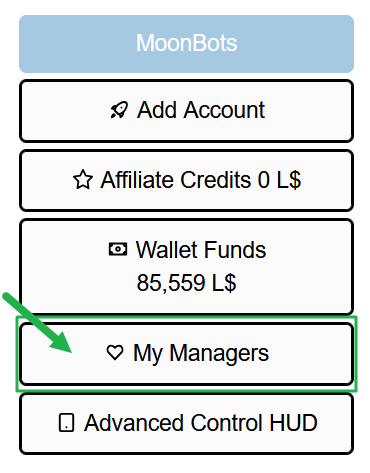
Log in to your MoonBots account and go to the My MoonBots dashboard. In the left sidebar, click My Managers.
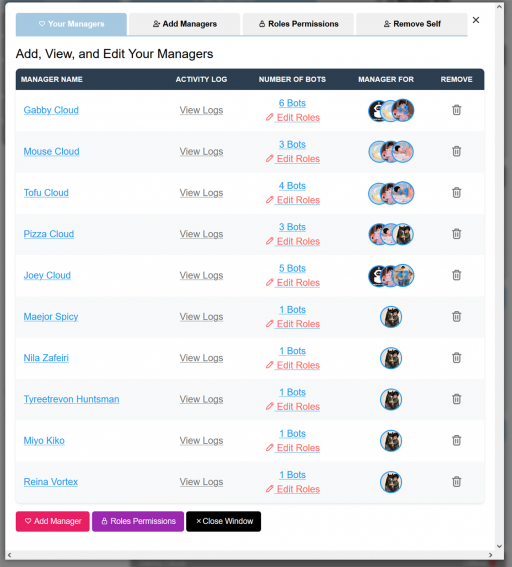
The Your Managers tab opens by default and shows a table of everyone with manager access to your bots. Each row lists the manager's name, a link to their activity log, the number of bots they manage, and which bots they are assigned to.
Scroll through the list and locate the manager you want to remove.
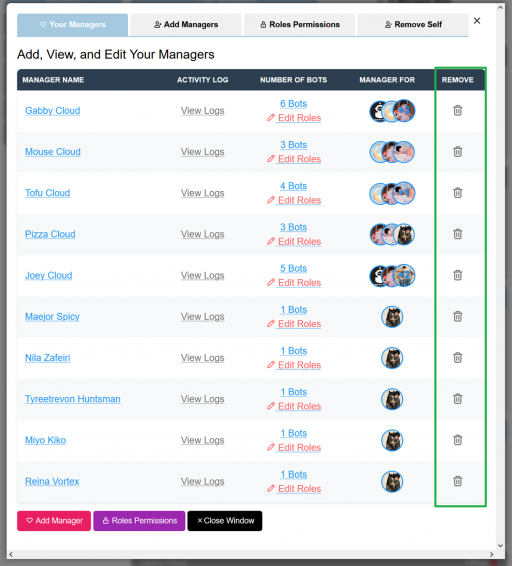
Once removed, that manager will no longer be able to log in to, restart, or manage any of your bots.
Note: Removing a manager does not delete the manager's own MoonBots account. It only removes their access to your bots. You can add them back at any time from the Add Managers tab if you change your mind.
If you run into any trouble removing a manager, reach out to MoonBots support, and we will be happy to help.
A few cookies keep you logged in and block bots, so those always run. Everything else stays off until you allow it: loading PayPal checkout, and any analytics we might add later. See our Cookie Policy.
Turn each purpose on or off. Nothing outside "strictly necessary" runs until you allow it, and you can change this whenever you like from the Cookie Settings link in the footer.
Keeps you logged in, protects the site from bots and abuse, and remembers settings you have deliberately changed, such as dark mode. Without these the site does not work.
PHPSESSID (login session, ends when you close the browser), cf_clearance (Cloudflare bot protection, 12 months), mb_consent (stores this choice, 6 months), theme and wm_dismissed (written only when you switch the theme or dismiss a notice, so they record a choice you made)
Loads PayPal so you can add funds to your wallet. PayPal stores data on your device to process the payment and detect fraud. If this is off, the PayPal checkout will not load until you allow it.
__paypal_storage__ and related PayPal storage, set by paypal.com
Measures which pages get used so we can improve them. Off by default and not in use today. The toggle is here so nothing can start without asking you first.
None in use today
Builds a profile of your interests to show you ads elsewhere. Off by default and not in use today.
None in use today
 MoonBots
 [Starries]