The Replace Links feature in Firestorm lets you redirect all existing inventory links that point to an old or outdated item, so they point to a new one instead.
This is handy when you get an updated version of something you use in multiple outfits, such as the Upsies. Instead of manually swapping the item in every outfit folder, Replace Links handles it all at once.
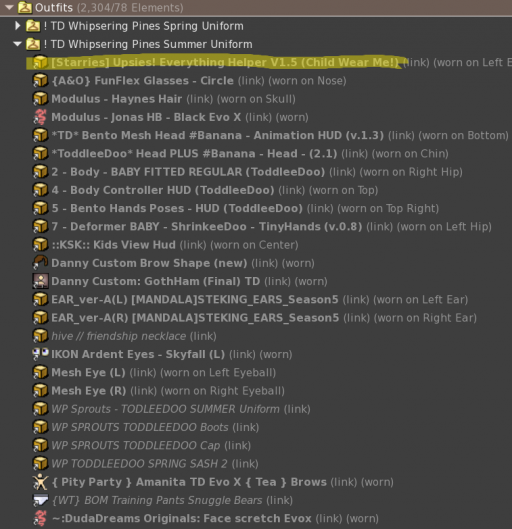
For example: if you have [Starries] Upsies! Everything Helper V1.41 (Child Wear Me!) saved across 10 outfit folders, and you get [Starries] Upsies! Everything Helper V1.51 (Child Wear Me!), Replace Links will update all 10 folders in one go.
You will need:
Open your inventory and locate either the old item itself. A good place to look is inside your outfit folders.
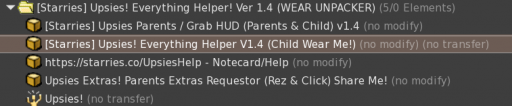
Right-click on the old item or the link to it. In the context menu that appears, click Replace Links.
A small window will pop up called Replace Inventory Links. It will show the name of the old item that the selected link points to, and may indicate how many links to that item exist in your inventory.
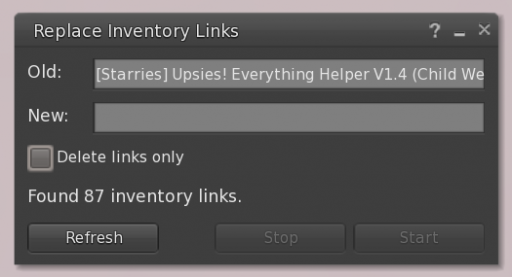
In the Replace Inventory Links window, look for the field labeled New or Target. Drag your new item from your inventory and drop it into that field.
Tip: You can also drag the new item from your Recent tab if it was just added to your inventory.
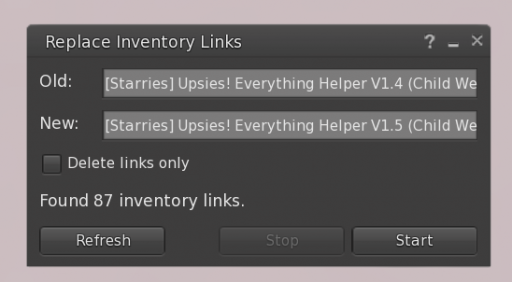
Once both items are set, click the Start button. Firestorm will go through your inventory and update every link that pointed to the old item so it now points to the new one.
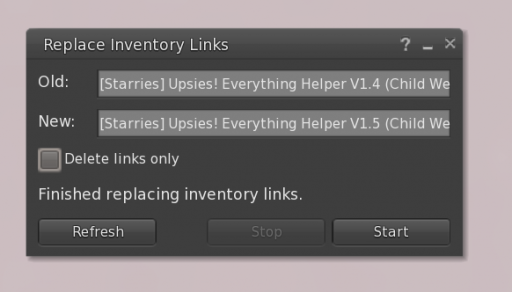
Open a few of your outfit folders to confirm the links now show the new item name. If everything looks right, you are done!
A few cookies keep you logged in and block bots, so those always run. Everything else stays off until you allow it: loading PayPal checkout, and any analytics we might add later. See our Cookie Policy.
Turn each purpose on or off. Nothing outside "strictly necessary" runs until you allow it, and you can change this whenever you like from the Cookie Settings link in the footer.
Keeps you logged in, protects the site from bots and abuse, and remembers settings you have deliberately changed, such as dark mode. Without these the site does not work.
PHPSESSID (login session, ends when you close the browser), cf_clearance (Cloudflare bot protection, 12 months), mb_consent (stores this choice, 6 months), theme and wm_dismissed (written only when you switch the theme or dismiss a notice, so they record a choice you made)
Loads PayPal so you can add funds to your wallet. PayPal stores data on your device to process the payment and detect fraud. If this is off, the PayPal checkout will not load until you allow it.
__paypal_storage__ and related PayPal storage, set by paypal.com
Measures which pages get used so we can improve them. Off by default and not in use today. The toggle is here so nothing can start without asking you first.
None in use today
Builds a profile of your interests to show you ads elsewhere. Off by default and not in use today.
None in use today
 MoonBots
 [Starries]