This guide walks parents through a quick one-time setup that lets your bot baby use Upsies and AVsitter furniture correctly. Once this is done, auto-play toys will move and attach as expected, and furniture props will attach to your baby instead of floating in place.
Without these Experiences joined, toys and furniture will not work correctly. For example, an auto-play trike will not move with your baby, and props like a highchair spoon will float in the air instead of attaching to their hand.
Open Firestorm and log your bot baby in just like you would log into your own account. You will need your bot's username and password to do this.
This is the only time you will need to log your bot into a viewer for this setup. Once the Experiences are joined, your bot can go back to running normally through MoonBots.
While your bot is logged in, open the Experiences window. In Firestorm, you can find this under the World menu, then Experiences.
Type "starries" into the search bar and click Go. You should see the [Starries] Powered experience appear in the results, owned by Killi Cloud.
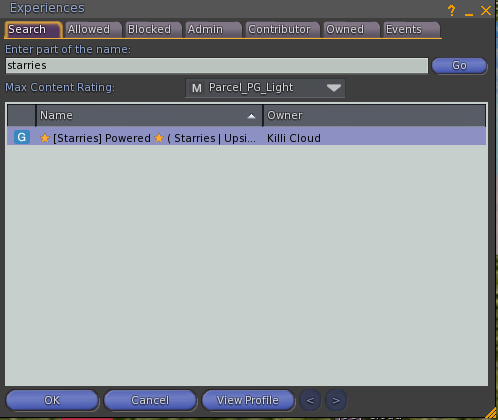
The Experiences search window. Search for "starries" to find the Starries Powered experience.
Double-click the search result, or select it and click View Profile, to open the Experience Profile for [Starries] Powered. This experience covers Starries Products, Upsies!, and Dino Nuggets.
Once Allow is clicked, the button will gray out to confirm your bot has joined.
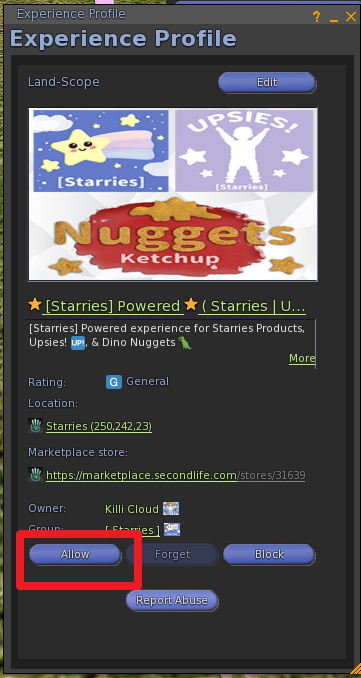
The Starries Experience Profile. Click Allow to join.
If you ever run into trouble with this experience specifically, the Starries team has a contact page at starries.co/contact for support.
Repeat the same search process, but this time type "avsitter" into the search bar. Look for the experience owned by Code Violet.
Joining this experience allows props on AVsitter furniture, such as a spoon at a highchair, to attach directly to your bot baby's hand instead of floating in the air.
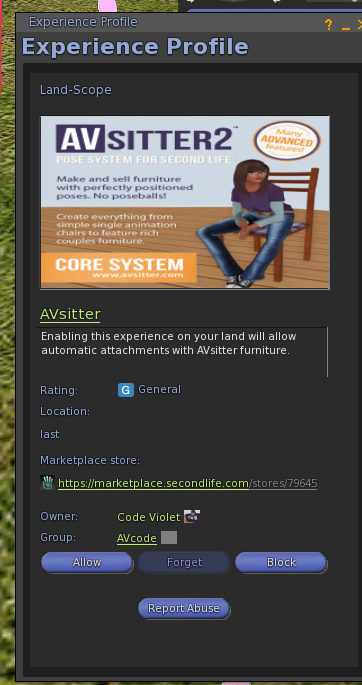
The AVsitter Experience Profile. Click Allow to join.
Once both experiences show as Allowed, your bot is ready. You can log it out of Firestorm and go back to using it through MoonBots as usual. The Experiences stay joined to your bot's account, so this setup only needs to happen once.
MoonBots can only vouch for the Starries and AVsitter Experiences covered in this guide. Experiences can grant a wide range of permissions, including attaching objects, running scripts, and controlling animations. Before joining any other Experience, please research it yourself and make sure you trust the creator.
Need more help? Reach out to the MoonBots support team, or for Starries-specific questions, visit starries.co/contact.
A few cookies keep you logged in and block bots, so those always run. Everything else stays off until you allow it: loading PayPal checkout, and any analytics we might add later. See our Cookie Policy.
Turn each purpose on or off. Nothing outside "strictly necessary" runs until you allow it, and you can change this whenever you like from the Cookie Settings link in the footer.
Keeps you logged in, protects the site from bots and abuse, and remembers settings you have deliberately changed, such as dark mode. Without these the site does not work.
PHPSESSID (login session, ends when you close the browser), cf_clearance (Cloudflare bot protection, 12 months), mb_consent (stores this choice, 6 months), theme and wm_dismissed (written only when you switch the theme or dismiss a notice, so they record a choice you made)
Loads PayPal so you can add funds to your wallet. PayPal stores data on your device to process the payment and detect fraud. If this is off, the PayPal checkout will not load until you allow it.
__paypal_storage__ and related PayPal storage, set by paypal.com
Measures which pages get used so we can improve them. Off by default and not in use today. The toggle is here so nothing can start without asking you first.
None in use today
Builds a profile of your interests to show you ads elsewhere. Off by default and not in use today.
None in use today
 MoonBots
 [Starries]